> ## Documentation Index
> Fetch the complete documentation index at: https://docs.coval.ai/llms.txt
> Use this file to discover all available pages before exploring further.
# Runs
> Launch, tag, schedule, and analyze your evaluations.
A **run** is a single evaluation. When you launch a run, Coval triggers one or more [simulations](/concepts/simulations/overview) and evaluates the results against your [metrics](/concepts/metrics/overview). A run can contain multiple conversations — for example, one per test case in your [test set](/concepts/test-sets/overview).
Runs are launched from the **Launch Simulations** page — see [Simulations](/concepts/simulations/overview#launching-a-simulation). This page covers what happens around a run once it exists: organizing it with tags, scheduling it to repeat, and analyzing the results.
## Tagging runs
You can add up to 20 tags to a run at launch time. Tags are useful for organizing and filtering runs — for example, by environment, release version, or test type.
**From the UI:** A "Tags" card appears in the launch panel. Type a tag name and click **+** (or press Enter) to add it. Click the **×** on any tag chip to remove it.
**Via the API:** Pass tags in the `metadata.tags` field of the launch request:
```json theme={null}
{
"agent_id": "...",
"persona_id": "...",
"test_set_id": "...",
"metadata": {
"tags": ["regression", "v2.1", "nightly"]
}
}
```
Constraints: max 20 tags per run, each tag max 200 characters. After launch, you can filter simulations by tag using the `tag=` filter expression (e.g., `tag="regression"`).
## Scheduling recurring evaluations
1. Enable the "Schedule Recurring" option.
2. Set frequency (hourly, daily, weekly).
3. Configure start and end dates if applicable.
4. Set alert thresholds for specific metrics (in "Alerts").
**Benefits of recurring evaluations:**
* Continuous monitoring of your agent's performance
* Early detection of regressions or issues
* Ability to set alerts when specific metrics underperform
* Historical performance tracking for trend analysis
## Analyzing evaluation results
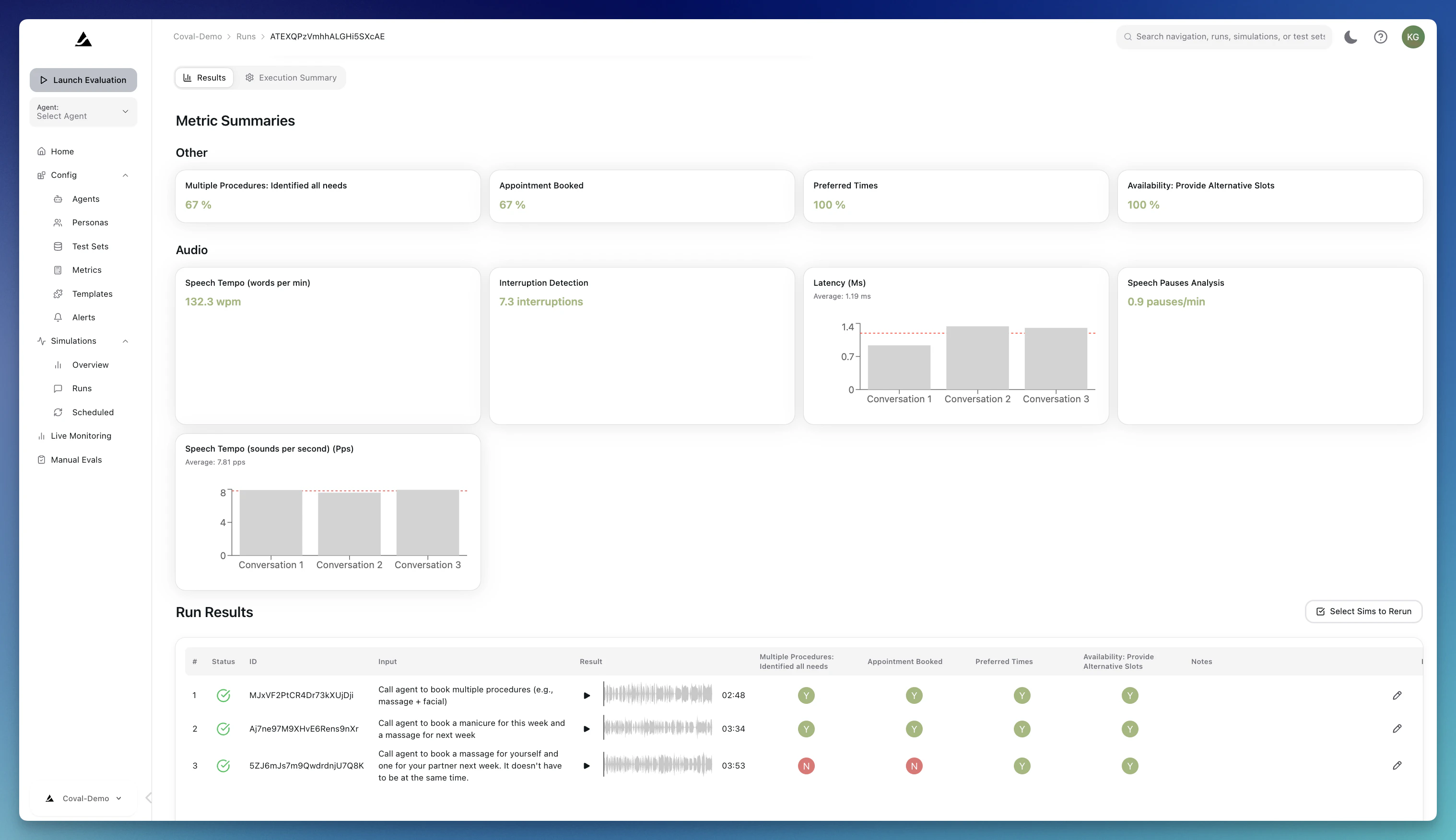
Once a run completes, you can dig into the results at every level — from the aggregate performance of the whole run down to a single turn in a single conversation.
### Run actions
On each run, you will see the following set of actions:
* [Resimulate](#resimulating-individual-simulations): Re-run one or more simulations in place if something looks off, or to confirm the performance of a specific metric
* Rerun metrics: An LLM Judge metric doesn't perform as expected and you need to adjust it? Go back to the run and rerun that specific metric
* Compare: Compare a run with any other run that was performed on the same test set
* Human Review: Provide feedback on the run results and send it to the "Manual Review" for team members to collaborate on iterations
* Share: Share an internal or public link to your run results — a great way to use simulations as part of your sales process!
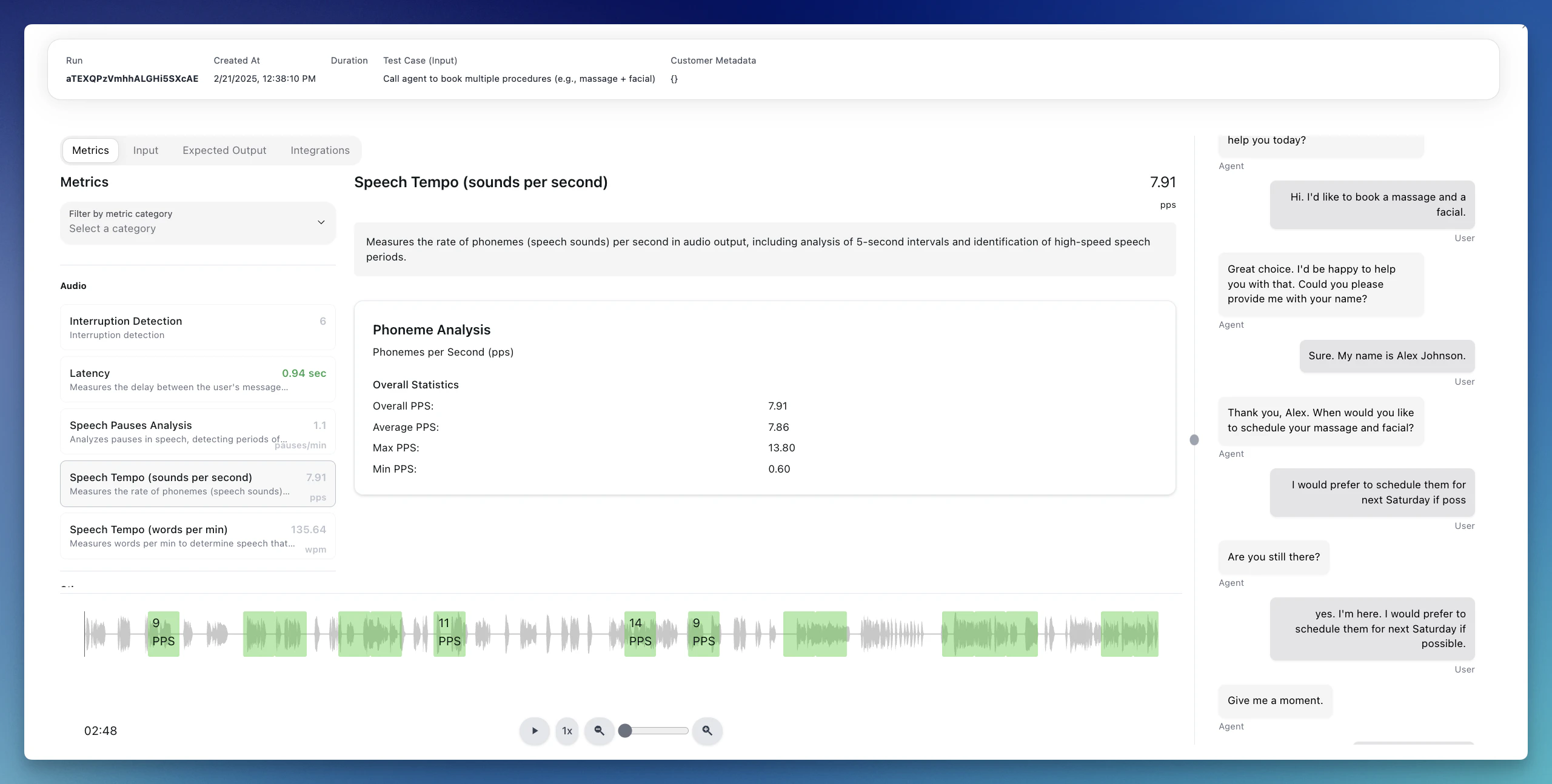
 Clicking on one call of this run will open your metric results in detail, allowing you to check your results in depth, detect where in the transcript your issues arise, and see detailed explanations for LLM Judge metrics. If [OpenTelemetry traces](/concepts/simulations/traces/opentelemetry) are available for the simulation, an **OTel Traces** card appears in the metric grid showing span count and linking to the trace viewer.
 ### Overview tab
The Overview tab consists of all individual conversations. It helps you get an overview of your agent's performance by creating your own summary graphs and seeing aggregated performance over time.
### Human review
Use Coval's [human-in-the-loop review](/concepts/metrics/human-review/human-review) capabilities to label runs for review.
## Resimulating individual simulations
If a single simulation looks off — a flaky agent response, a metric that didn't fire correctly, or results from before you updated your agent configuration — you can rerun it in place without launching a whole new run.
**How to resimulate from the run results table:**
1. Open the run from your Runs list.
2. In the results table, use the checkboxes on the left to select one or more simulations.
3. Click the **Resimulate (N)** button in the bulk action bar.
4. Confirm in the dialog. The selected simulations are queued immediately and you'll see a toast confirming how many were accepted.
**What resimulation does:**
* Reruns each selected simulation against the **latest** agent, persona, test set, test case, metric, and agent mutation configuration.
* Overwrites the existing simulation output (transcript, audio, tool calls) and metric results in place.
* Keeps the original simulation and run records — the `simulation_id` and `run_id` are preserved so any dashboards, shares, or links pointing at them continue to work.
* Runs asynchronously — the simulation's status will move from `IN_QUEUE` → `IN_PROGRESS` → back to a terminal status. Refresh the page to see progress.
Because resimulation **overwrites** existing results, the original output for the selected simulations is lost. If you want to keep the old results for comparison, launch a new run instead.
**When resimulation is rejected:**
* The simulation is currently running or queued (wait for it to finish first).
* The underlying agent, persona, test set, test case, or metric has been deleted since the original run.
* The run belongs to a conversation upload (conversations can't be resimulated).
In any of these cases, you'll see a toast with a specific reason and the affected simulations are skipped. Other selected simulations still queue normally.
## Deterministic simulation modes
By default, the persona generates responses dynamically using an LLM. For cases where you need repeatable, deterministic persona behavior, Coval offers two additional test case input types:
* **Audio Upload**: Upload a pre-recorded audio file (persona's side of the conversation) that plays back exactly as recorded instead of generating persona speech. The audio is automatically transcribed so persona turns still appear in the transcript. After playback completes, the simulation waits a 30-second grace period for the agent to finish responding, then ends the call. You can optionally attach a ground truth transcript to each test case to enable the [STT Word Error Rate (Audio Upload)](/concepts/metrics/types/trace#stt-word-error-rate-audio-upload) metric, which measures your agent's speech recognition accuracy against the known-correct transcript. See [Test Sets — Audio Upload](/concepts/test-sets/overview#3-audio-upload) for setup details.
* **Scripted Turns**: Define an ordered list of exact lines for the persona to deliver turn by turn. The persona still uses the configured voice and background sounds, but speaks the scripted text instead of LLM-generated responses. A built-in divergence detector monitors agent responses and can end the simulation early if the agent goes off-track. See [Test Sets — Script](/concepts/test-sets/overview#4-script) for setup details.
## Image attachments
For WebSocket voice agents, Coval can also simulate image-sharing workflows by attaching one image to a test case and letting the persona send it during the conversation when the agent asks for visual context.
This is useful for scenarios like submitting a receipt, showing a damaged item, or sending an ID photo after the agent requests it.
**Requirements:**
* The test case must include an image attachment.
* The test set must be attached to a WebSocket voice agent.
* The simulation must run against a WebSocket voice agent.
* The agent must be configured with a compatible `send_media_template`.
See [Test Sets — Image Attachment](/concepts/test-sets/overview#5-image-attachment) for test-case setup and [WebSocket](/concepts/agents/connections/websocket#media-send-template) for payload configuration.
## Simulation time limits
Each simulated conversation has a maximum duration:
| | Duration |
| ------------------- | ---------- |
| **Default timeout** | 10 minutes |
| **Maximum timeout** | 15 minutes |
A simulation ends when the conversation reaches a natural conclusion, the test objective is met, or the timeout is reached — whichever comes first.
If your agent requires longer conversations, contact [support@coval.dev](mailto:support@coval.dev) to discuss your use case. The hard maximum per simulation is 15 minutes.
***
## Best practices
**Testing strategy:**
* Start with core functionality test cases
* Expand to edge cases and failure scenarios
* Include regression tests for fixed issues
* Test across different user personas and scenarios
**Continuous improvement:**
* Regularly update test sets based on production data
* Refine metrics as your understanding of agent performance evolves
### Overview tab
The Overview tab consists of all individual conversations. It helps you get an overview of your agent's performance by creating your own summary graphs and seeing aggregated performance over time.
### Human review
Use Coval's [human-in-the-loop review](/concepts/metrics/human-review/human-review) capabilities to label runs for review.
## Resimulating individual simulations
If a single simulation looks off — a flaky agent response, a metric that didn't fire correctly, or results from before you updated your agent configuration — you can rerun it in place without launching a whole new run.
**How to resimulate from the run results table:**
1. Open the run from your Runs list.
2. In the results table, use the checkboxes on the left to select one or more simulations.
3. Click the **Resimulate (N)** button in the bulk action bar.
4. Confirm in the dialog. The selected simulations are queued immediately and you'll see a toast confirming how many were accepted.
**What resimulation does:**
* Reruns each selected simulation against the **latest** agent, persona, test set, test case, metric, and agent mutation configuration.
* Overwrites the existing simulation output (transcript, audio, tool calls) and metric results in place.
* Keeps the original simulation and run records — the `simulation_id` and `run_id` are preserved so any dashboards, shares, or links pointing at them continue to work.
* Runs asynchronously — the simulation's status will move from `IN_QUEUE` → `IN_PROGRESS` → back to a terminal status. Refresh the page to see progress.
Because resimulation **overwrites** existing results, the original output for the selected simulations is lost. If you want to keep the old results for comparison, launch a new run instead.
**When resimulation is rejected:**
* The simulation is currently running or queued (wait for it to finish first).
* The underlying agent, persona, test set, test case, or metric has been deleted since the original run.
* The run belongs to a conversation upload (conversations can't be resimulated).
In any of these cases, you'll see a toast with a specific reason and the affected simulations are skipped. Other selected simulations still queue normally.
## Deterministic simulation modes
By default, the persona generates responses dynamically using an LLM. For cases where you need repeatable, deterministic persona behavior, Coval offers two additional test case input types:
* **Audio Upload**: Upload a pre-recorded audio file (persona's side of the conversation) that plays back exactly as recorded instead of generating persona speech. The audio is automatically transcribed so persona turns still appear in the transcript. After playback completes, the simulation waits a 30-second grace period for the agent to finish responding, then ends the call. You can optionally attach a ground truth transcript to each test case to enable the [STT Word Error Rate (Audio Upload)](/concepts/metrics/types/trace#stt-word-error-rate-audio-upload) metric, which measures your agent's speech recognition accuracy against the known-correct transcript. See [Test Sets — Audio Upload](/concepts/test-sets/overview#3-audio-upload) for setup details.
* **Scripted Turns**: Define an ordered list of exact lines for the persona to deliver turn by turn. The persona still uses the configured voice and background sounds, but speaks the scripted text instead of LLM-generated responses. A built-in divergence detector monitors agent responses and can end the simulation early if the agent goes off-track. See [Test Sets — Script](/concepts/test-sets/overview#4-script) for setup details.
## Image attachments
For WebSocket voice agents, Coval can also simulate image-sharing workflows by attaching one image to a test case and letting the persona send it during the conversation when the agent asks for visual context.
This is useful for scenarios like submitting a receipt, showing a damaged item, or sending an ID photo after the agent requests it.
**Requirements:**
* The test case must include an image attachment.
* The test set must be attached to a WebSocket voice agent.
* The simulation must run against a WebSocket voice agent.
* The agent must be configured with a compatible `send_media_template`.
See [Test Sets — Image Attachment](/concepts/test-sets/overview#5-image-attachment) for test-case setup and [WebSocket](/concepts/agents/connections/websocket#media-send-template) for payload configuration.
## Simulation time limits
Each simulated conversation has a maximum duration:
| | Duration |
| ------------------- | ---------- |
| **Default timeout** | 10 minutes |
| **Maximum timeout** | 15 minutes |
A simulation ends when the conversation reaches a natural conclusion, the test objective is met, or the timeout is reached — whichever comes first.
If your agent requires longer conversations, contact [support@coval.dev](mailto:support@coval.dev) to discuss your use case. The hard maximum per simulation is 15 minutes.
***
## Best practices
**Testing strategy:**
* Start with core functionality test cases
* Expand to edge cases and failure scenarios
* Include regression tests for fixed issues
* Test across different user personas and scenarios
**Continuous improvement:**
* Regularly update test sets based on production data
* Refine metrics as your understanding of agent performance evolves