

Open your assignments
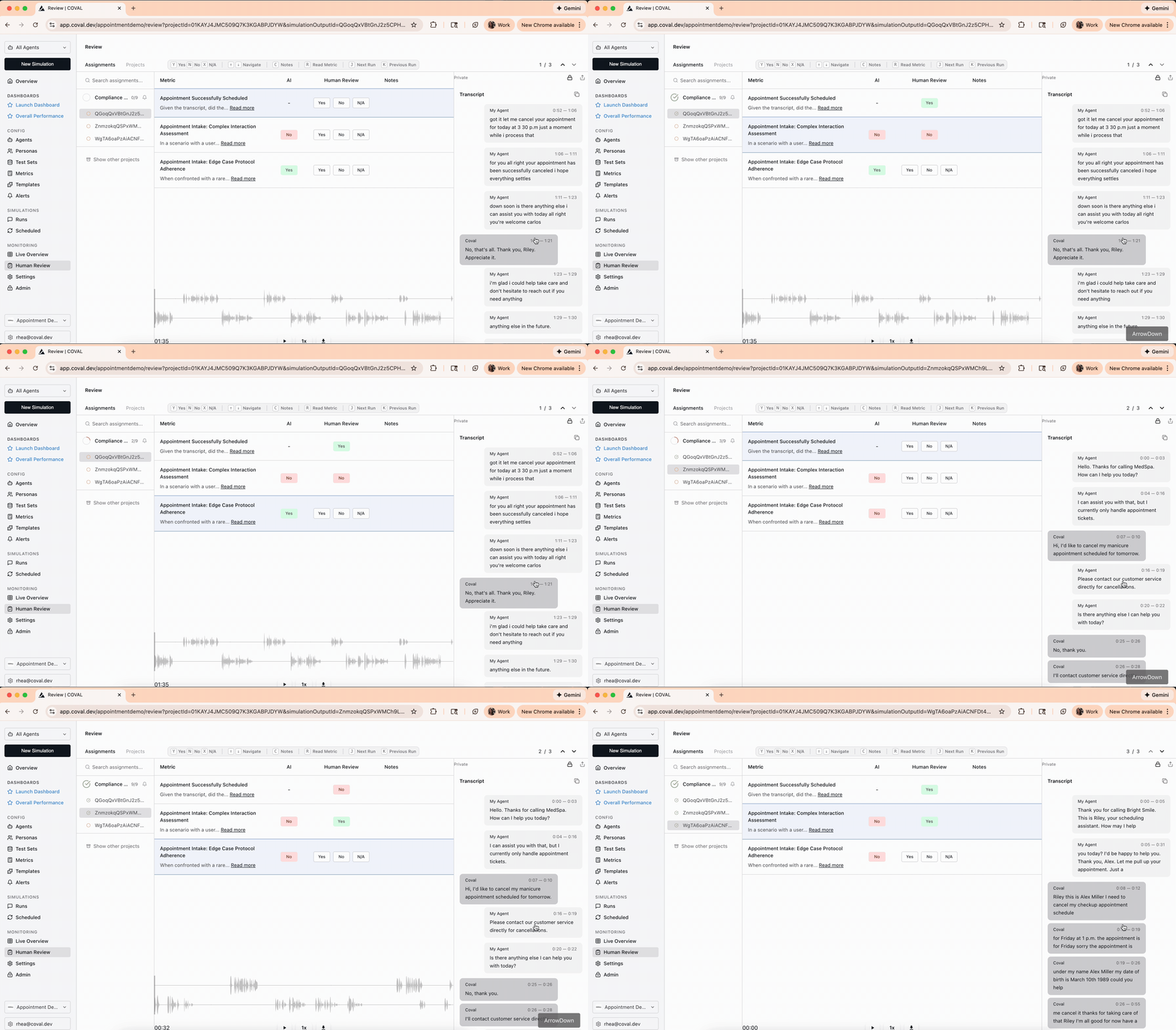
Go to the Human Review page in the Coval dashboard. The Assignments tab lists every annotation assigned to you. Click one to open the review interface: the conversation transcript — with an audio player for voice calls — alongside the metrics to evaluate.Label each metric
Read the transcript, listen to the audio where relevant, and give your ground-truth answer for each metric. How you answer depends on the metric type.Direct value metrics
You give a single value for the whole conversation.- Binary (Pass/Fail) — select Yes, No, or N/A. Applies to binary LLM judge, audio binary judge, and agent-repeats-itself.
- Numerical — enter a number within the configured min/max range. Applies to numerical and audio numerical judges.
- Categorical — choose from a configured dropdown. Applies to categorical and audio categorical judges.
- Transcript sentiment — pick a sentiment label (e.g. Rude, Polite, Encouraging, Professional).
- Composite evaluation — assess each criterion with MET / NOT_MET / UNKNOWN.
Audio region metrics
Mark or edit regions on the audio waveform timeline. These require an audio recording on the conversation, and cover interruption rate, latency, abrupt pitch changes, volume/pitch misalignment, non-expressive pauses, vocal fry, music detection, time to first audio, volume variance, custom pause analysis, and agent-needs-reprompting.Per-segment labeling
Assign a label to each speaking segment — for audio sentiment, mark each segment as Neutral, Angry, Happy, or Sad.Per-message review
Provide a value for each message — for words per message, the word count of each assistant message.Not all metrics support human review — only those with a defined annotation mechanism appear in the review interface.
Applying triage labels
If your project has triage labels configured, apply the ones that fit each conversation. Triage labels are independent of your metric answers — they’re your own categories (failure type, theme, severity, follow-up) for sorting and grouping conversations afterward. Tag a call with as many as apply as you go.Add notes
Optionally add a note to explain a labeling decision. Notes can be placed anywhere in the review interface and are visible to project collaborators — when a project requires disagreement notes, this is where you record why you disagreed with the metric.Review fast with the keyboard
The interface is built for speed. Navigate rows withj / k, open an assignment with Enter, move between neighboring conversations with h / l (or a / d, or the arrow keys), and back out of a surface with b or Escape. See the Keyboard Navigation guide for the full model.