

Writing effective LLM judge prompts
These techniques apply to any LLM judge metric — Binary, Categorical, Numerical, Composite Evaluation, and Multimodal/Audio. The goal is a prompt that produces reliable, deterministic results across repeated evaluations.Core principles
Specificity over generality — Define exact evaluation criteria rather than subjective assessments. Use concrete, measurable behaviors instead of abstract concepts, and provide clear boundary conditions for edge cases. Role consistency — Always refer to the AI agent as “the assistant” and to human participants as “the user” or “the customer.” Keep terminology consistent throughout the prompt. Deterministic design — Structure prompts to minimize LLM variance. Provide explicit decision trees where possible and define what constitutes partial vs. complete success.Best practices
- Be objective. “Did the assistant acknowledge the user’s concern within their first two responses?” is verifiable; “Did the assistant provide good customer service?” is not.
- Single focus. One metric should measure one thing. Split resolution and professionalism into separate metrics rather than asking “Did the assistant resolve the issue and stay professional?”
- Clear logic. Use explicit AND/OR and ANY/ALL operators. When using OR conditions, make it explicit that the result applies if any condition is met (e.g., “Return YES if ANY of the following apply”). Make sure your evaluation logic matches the question — a question phrased with “or” but evaluated with “and” produces wrong results.
Advanced techniques
For complex evaluations, structure the prompt to guide the model’s reasoning: Chain of thought — Ask the model to reason through intermediate steps before deciding:Example prompt — Issue resolution detection, using ANY-of logic with explicit YES/NO criteria:
Common issues
| Issue | Solution |
|---|---|
| Inconsistent scoring | Add more specific criteria and examples |
| Edge case failures | Include explicit handling for boundary conditions |
| LLM hallucination | Use more structured prompts with clear constraints |
| Low correlation | Ensure the metric measures what you intend to measure |
Template variables
You can embed dynamic values from agents, test cases, and uploaded conversations into your metric prompts using template variables. The system replaces each placeholder with the actual value for the simulation or conversation being evaluated, so one metric adapts to many configurations.{{agent.*}} — Agent attributes
Reference custom properties defined on the agent configuration with {{agent.attribute_name}}. The placeholder is replaced with the attribute value from the agent under evaluation.
{{expected_output.*}} — Test case expected outputs
Reference values from a test case’s expected output with {{expected_output.<key>}}. For a test case whose expected output carries source, destination, and ticket_class:
{{customer_metadata.<key>}} — Upload-time values
Reference per-conversation values you provide at upload time with {{customer_metadata.<key>}}. This is ideal for evaluating monitored production calls against ground truth known only at upload time — prices, order totals, confirmation numbers, expected outcomes. Each conversation is judged against its own metadata value.
See Customer Metadata (Upload-Time Values).
For comprehensive documentation — nested paths, array indexing, dynamic keys, and full examples — see Attributes.
Transcript scope
Transcript Scope focuses metric evaluation on specific portions of a conversation rather than the entire transcript, reducing noise and improving accuracy for targeted assessments. It is available for all LLM Judge metrics (Binary, Numerical, Categorical) and Multimodal/Audio LLM Judge metrics.Configuration
Set the Transcript Scope toggle to:- Full (default) — Evaluate the entire transcript.
- Custom — Apply filters to focus on specific messages.
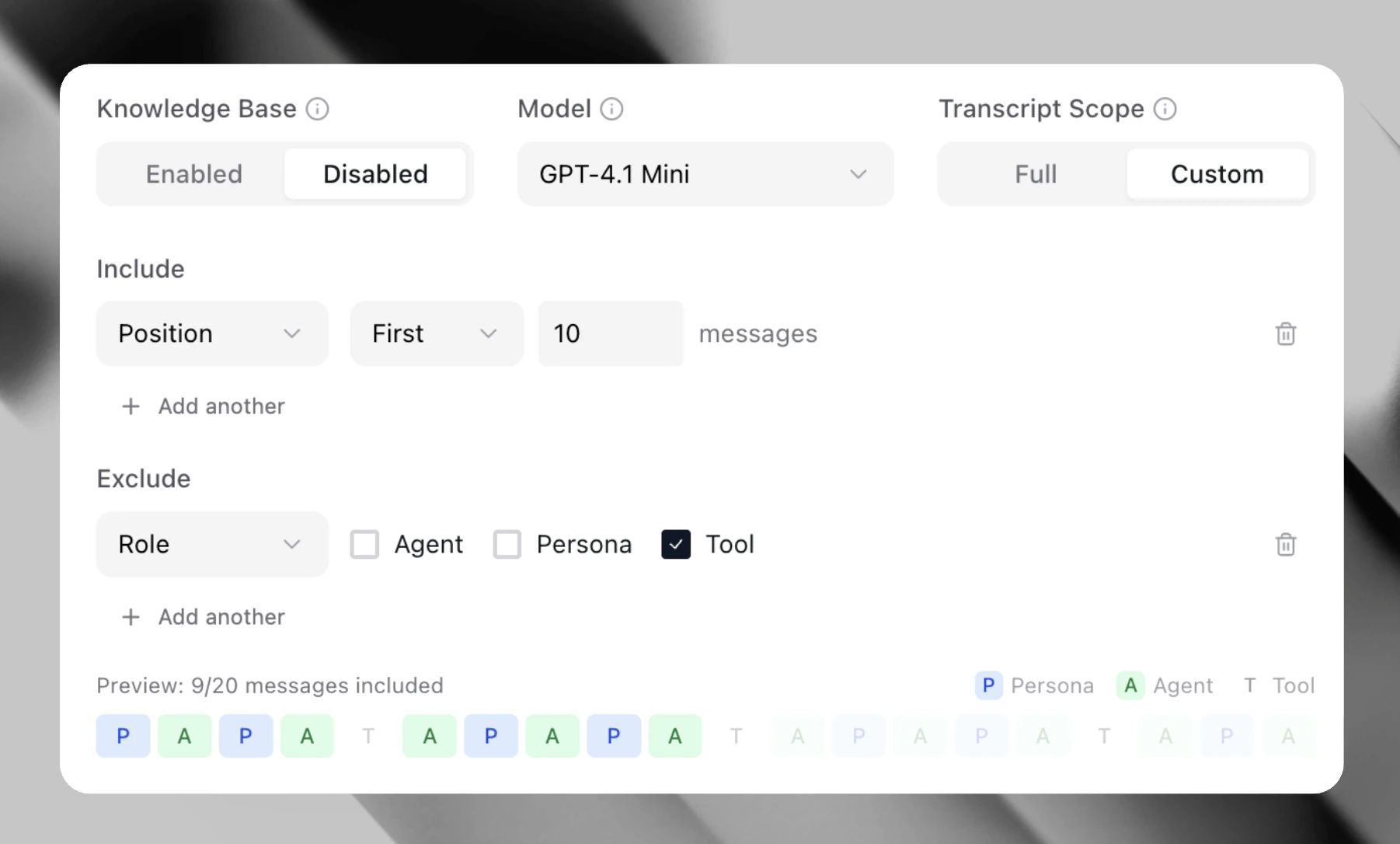
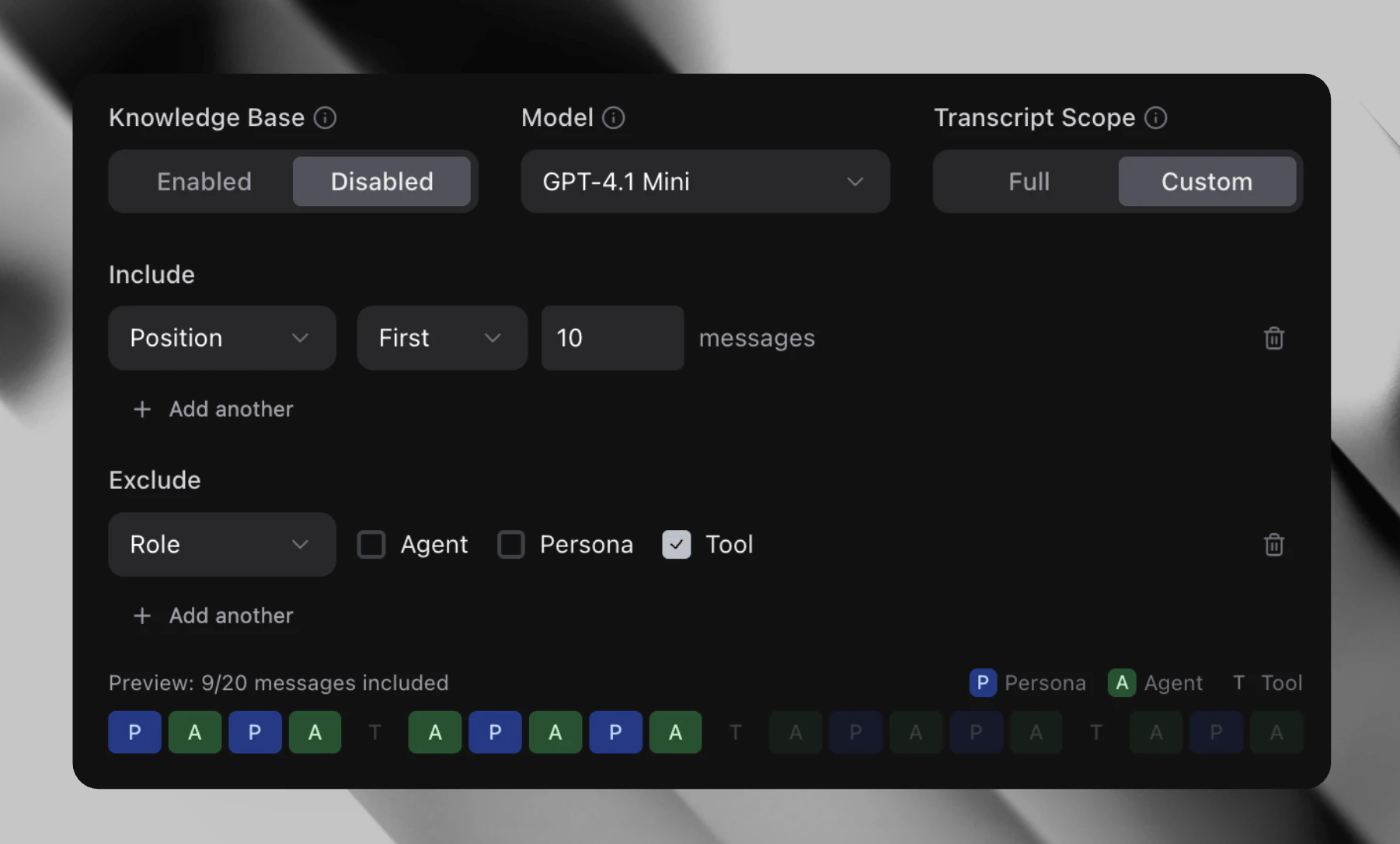
Role filter
Role filter
Limit evaluation to messages from specific speakers:
- Agent — Only assistant/agent messages
- User — Only user/customer messages
- Both — Messages from the selected roles
Range filter
Range filter
Limit evaluation to a portion of the conversation:
- Last N turns — Only the final N message exchanges
- First N turns — Only the opening N message exchanges
| Use case | Filter configuration |
|---|---|
| Evaluate only agent responses | Role filter: agent |
| Check the closing of a conversation | Range filter: Last 3 turns |
| Assess user sentiment only | Role filter: user |
| Focus on recent context | Range filter: Last N messages |
Scope for audio metrics
When using Transcript Scope with Multimodal/Audio LLM Judge metrics, Coval automatically:- Filters the transcript to the selected messages.
- Uses message timestamps to extract the corresponding audio segments.
- Merges adjacent segments (within 0.5 seconds) to avoid artifacts.
- Sends only the filtered audio to the LLM.
Benefits
- More accurate — Removes noise from irrelevant messages.
- Lower cost — Processes less content per evaluation.
- Faster — Smaller context means quicker LLM responses.
Trace context
Trace Context gives an LLM Judge or Composite Evaluation metric visibility into what your agent actually did — not just what it said — by including OpenTelemetry span data alongside the transcript. When Include Traces is enabled on a custom transcript scope, the judge receives aTRACE CONTEXT: block appended to its prompt. This block summarizes the conversation’s OTel spans: span names, timing windows, and key attributes like tool call names and function arguments. For Composite Evaluation metrics the same block is appended to every per-criterion prompt.
When to enable
Trace context is most valuable when the behavior you want to evaluate isn’t visible in the transcript alone:| Use case | Why traces help |
|---|---|
| Verify the agent used the right tools in the right order | Tool call spans show what functions were invoked and with what arguments |
| Catch hallucinations — agent claimed to do something it didn’t | Trace spans show whether the action actually occurred |
| Evaluate retrieval quality | Retrieval spans show what data was fetched before the agent responded |
| Assess error handling | Error spans reveal failures the agent may have silently recovered from |
How to enable
- Open or create a supported metric — LLM Judge (Binary, Numerical, Categorical, or Audio) or Composite Evaluation.
- Set Transcript Scope to Custom.
- In the custom scope panel, toggle Include Traces on.
Requirements
- Your agent must emit OpenTelemetry traces to Coval. See the OpenTelemetry Traces guide for setup.
- The simulation must have produced trace data. If none is available, the toggle has no effect and the prompt is sent without a trace block.