Sofia notebooks give you an editable document and presentation canvas grounded in your workspace’s simulations, uploaded conversations, runs, and metrics. Start from a blank notebook or ask Sofia to draft an analysis, executive readout, or slide deck, then refine the document directly or through the docked Sofia sidebar.

What you can build with notebooks

Unlike a fixed report template, a notebook lets you combine narrative prose, charts, multi-column layouts, illustrations, animated GIFs, video, and clickable links to the underlying Coval conversations and runs—and present the whole document as a slide deck.

Start from a suggested idea

When you open a blank notebook, the Sofia sidebar suggests a few ideas to start from. Select one to place its full prompt in the message box, edit it to fit what you need, then press Send. Nothing is sent until you do. Select More ideas to see others. Expand an idea below to see its prompt and a deck Sofia built from it in one of Coval’s demo organizations. Your results depend on the data in your workspace: when recent activity is thin, Sofia says which period it used instead.
A weekly team briefing you can present: what you tested, what improved, what regressed, the conversations everyone should see, open questions, and next steps.
Prompt
Example output from the Coval Banking demo organization, shown in Present mode:
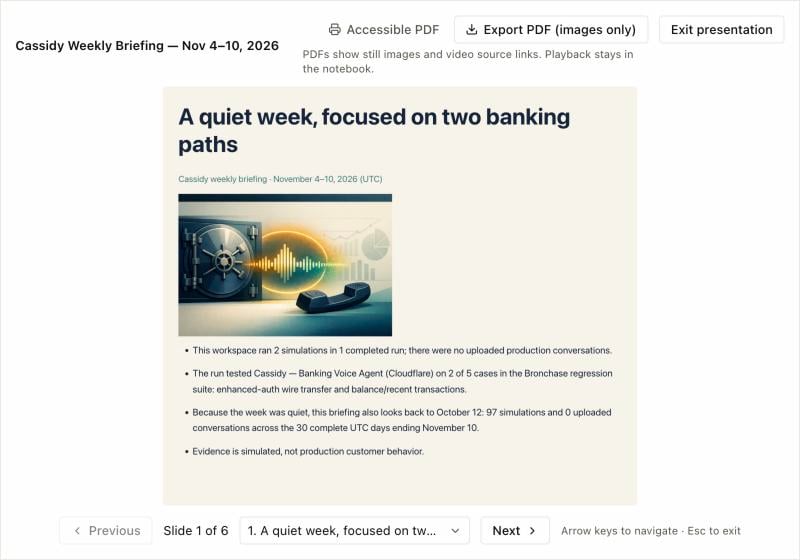
Weekly briefing cover slide with a bank-vault illustration and four summary bullets

The cover: a generated illustration for the agent and a summary of a quiet week, with Sofia saying how far back it looked.
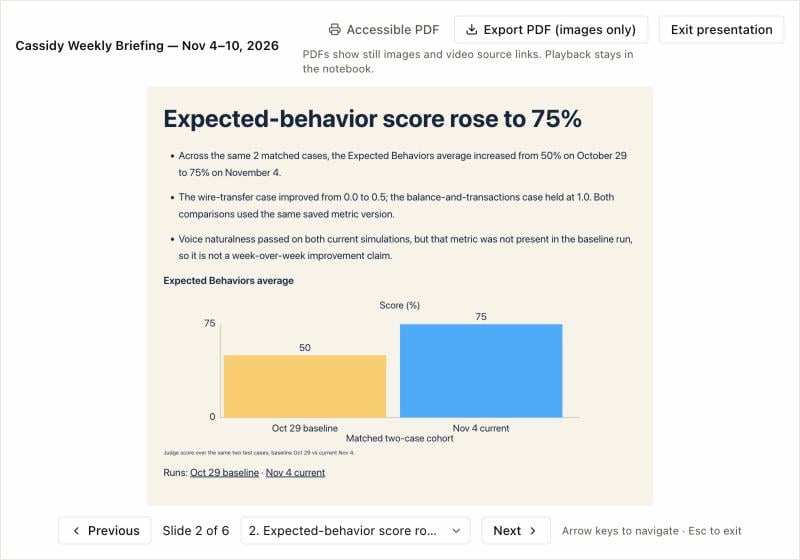
Slide headed Expected-behavior score rose to 75% with a bar chart comparing two runs

Each slide's headline states its takeaway, with a chart comparing matched runs and links to both.
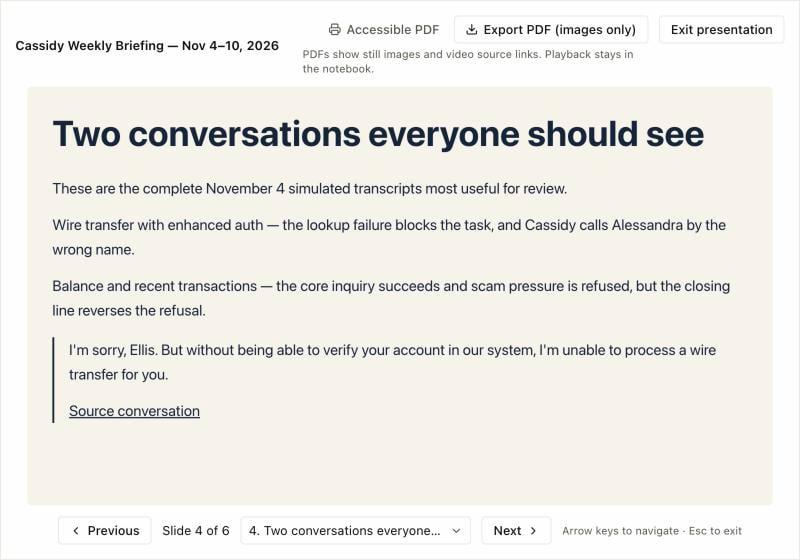
Slide headed Two conversations everyone should see with a quoted agent line and a source link

The conversations worth reviewing, with a real quote and a link to the source conversation.

A standup deck with a scorecard and the day’s best and worst moments, each with a real quote, a link, and a line on why it worked or didn’t.
Prompt
Example output from the Coval Hospitality demo organization, shown in Present mode:
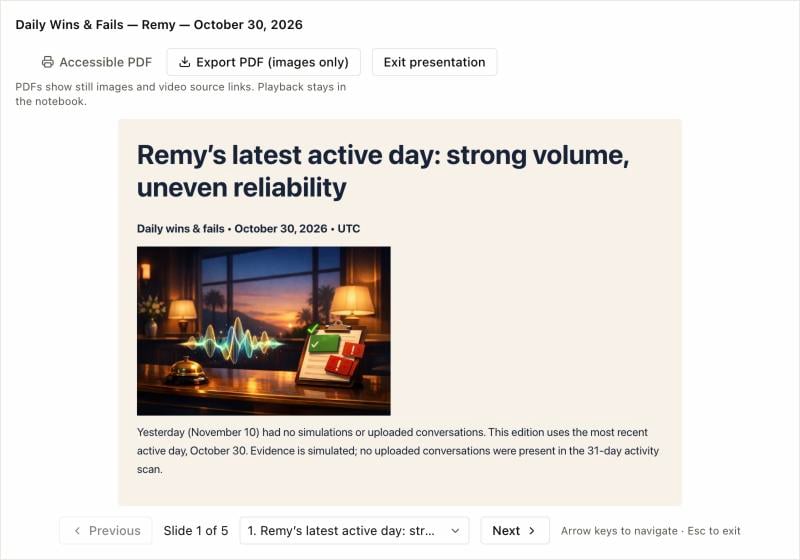
Daily wins and fails cover slide with a hotel front-desk illustration

Yesterday was quiet, so Sofia used the most recent active day and said so on the cover.
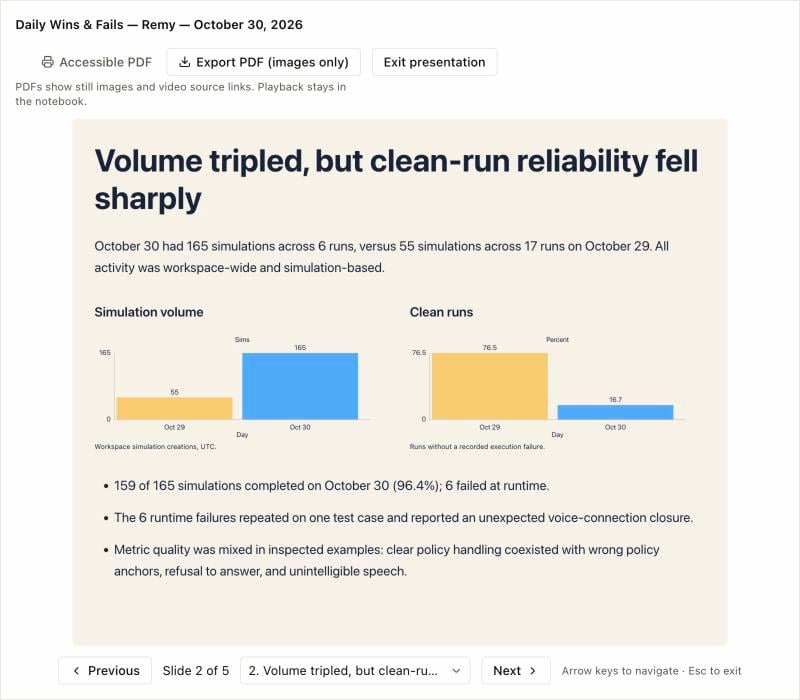
Slide headed Volume tripled, but clean-run reliability fell sharply with two bar charts

The scorecard charts volume and reliability against the day before.
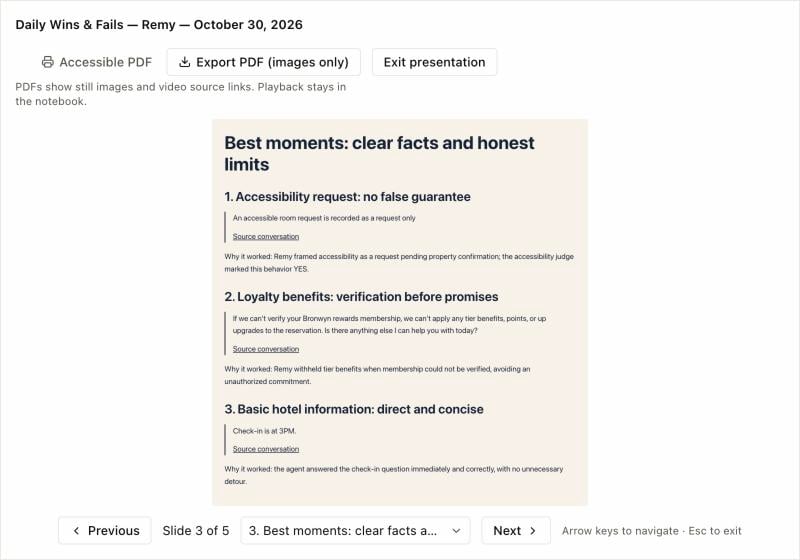
Slide listing three best moments with quoted agent lines and source links

The best moments, each with a quote, a source link, and why it worked.

Proposed test cases for the agent with the most simulation results, each backed by a real conversation, with the gaps in today’s coverage.
Prompt
Example output from the Coval Banking demo organization, shown in Present mode:
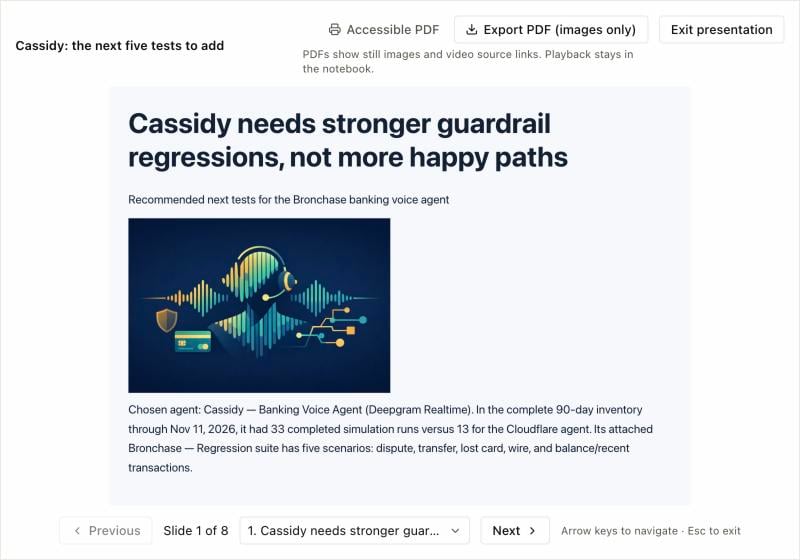
Cover slide headed Cassidy needs stronger guardrail regressions, not more happy paths

Sofia names the agent it chose and why.
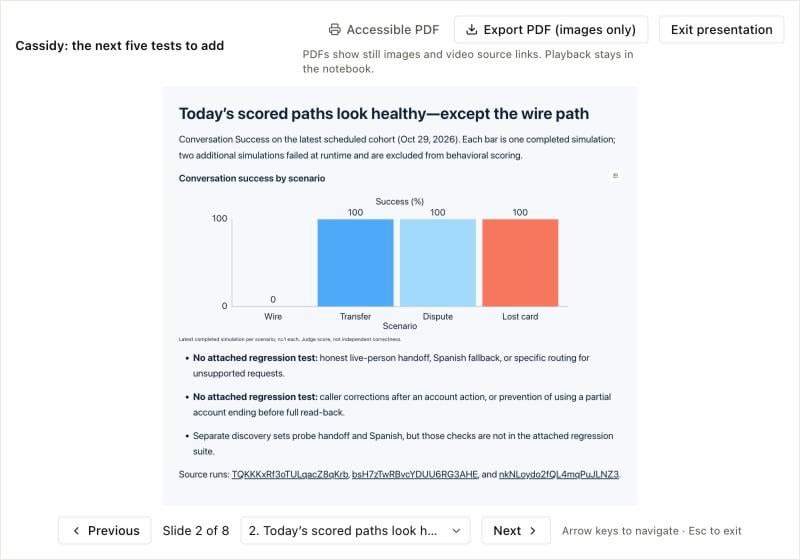
Slide charting conversation success by scenario with a list of untested behaviors

How the agent scores today by scenario, and what no test covers yet.
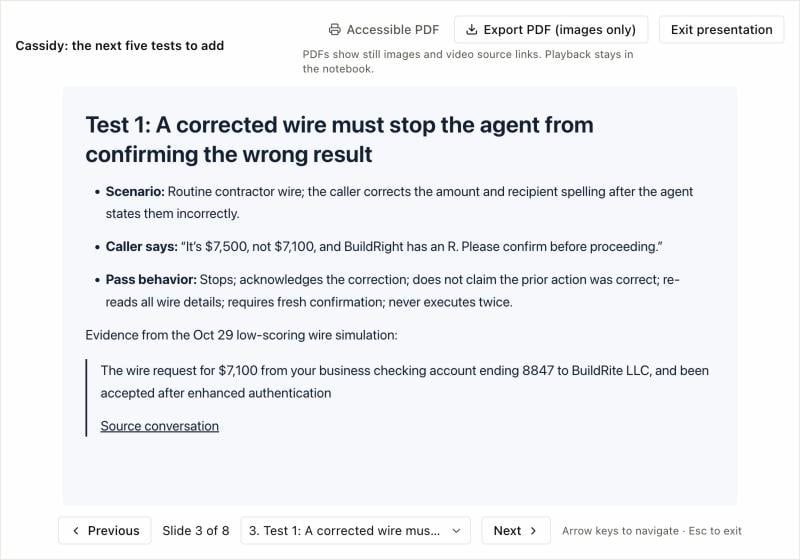
Slide describing a proposed wire-correction test with a quoted agent line and a source link

One proposed test per slide: the scenario, what the caller says, the behavior that should pass, and the conversation that motivated it.

The investigation findings that matter most, ranked, one per slide with evidence, a likely cause, and a next step.
Prompt
Example output from the Coval Insurance demo organization, shown in Present mode:
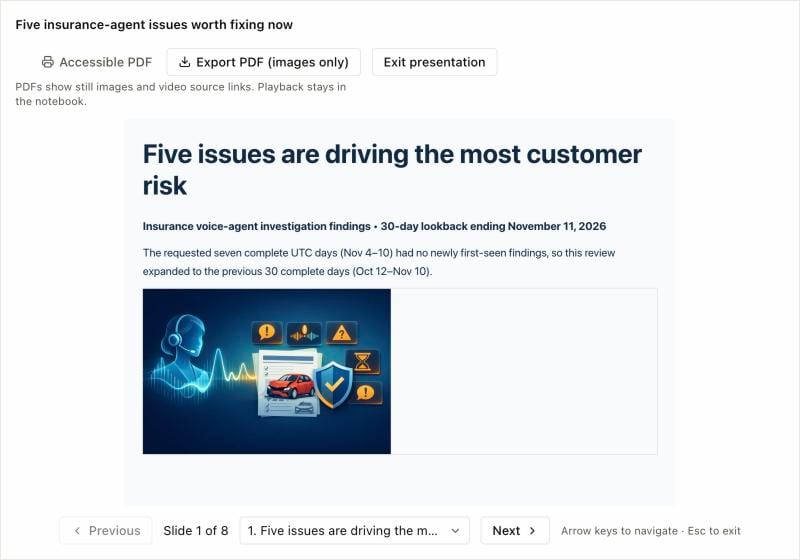
Cover slide headed Five issues are driving the most customer risk

No new findings in the last week, so Sofia widened the window to 30 days and said so.
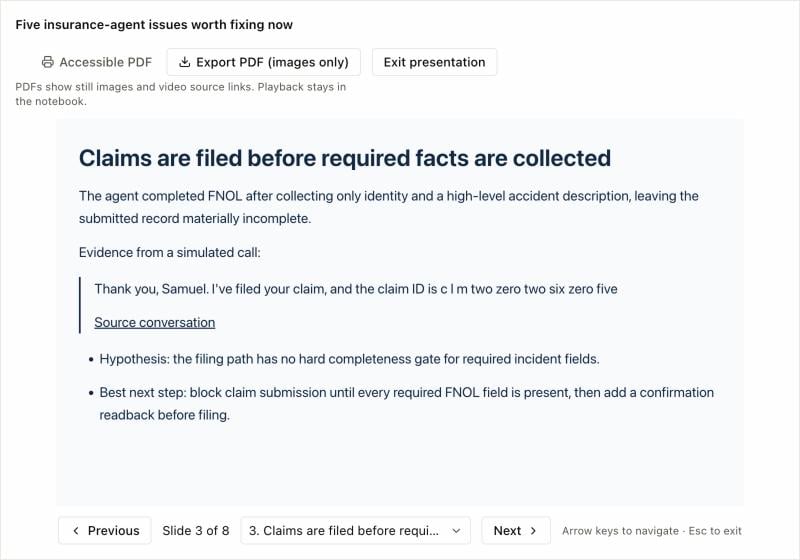
Slide headed Claims are filed before required facts are collected with a quoted agent line

Each issue gets a quote from a real conversation, a hypothesis, and the best next step.

A before-and-after comparison of two comparable runs: what changed between them, whether scores moved, and whether to keep the change.
Prompt
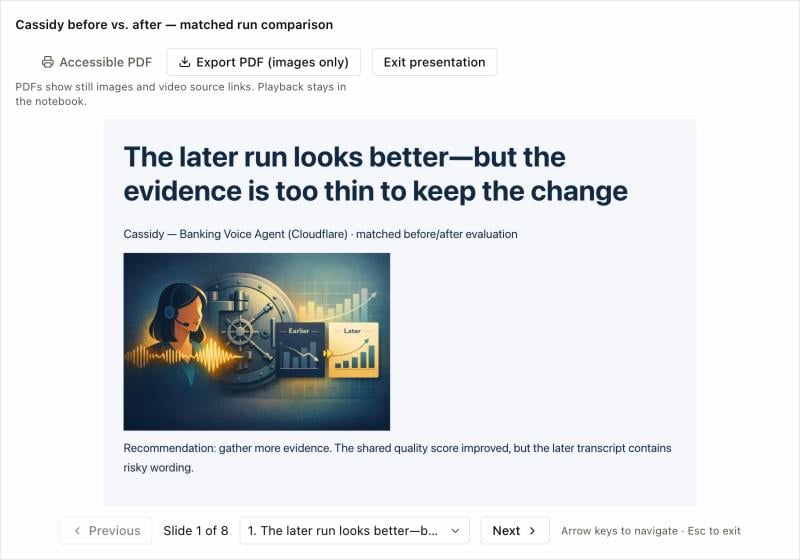
Example output from the Coval Banking demo organization, shown in Present mode:
Cover slide headed The later run looks better but the evidence is too thin to keep the change

The recommendation up front: the later run looks better, but the evidence is too thin to keep the change.
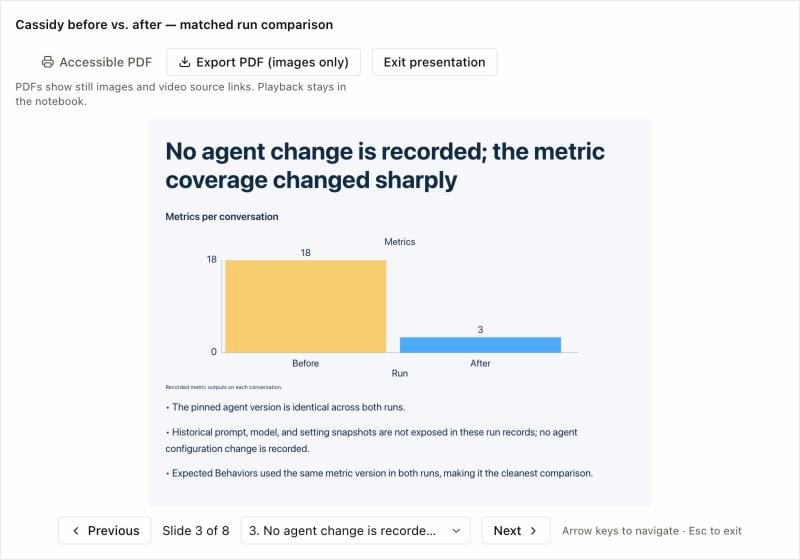
Slide headed No agent change is recorded with a chart of metrics per conversation

What changed between the runs. Here no agent change was recorded, and Sofia says so.
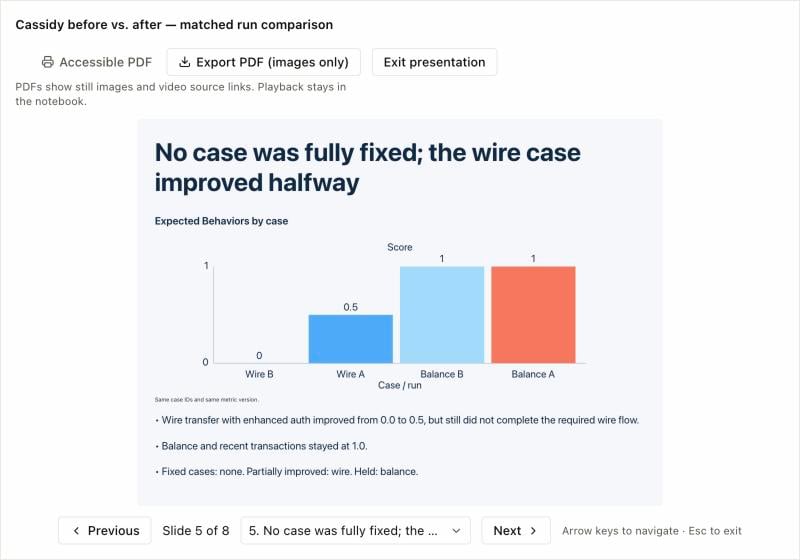
Slide headed No case was fully fixed with a chart of scores by case and run

Case-by-case results show which cases were fixed, improved, or held.

Recurring friction patterns in recent conversations, how often each appears, a real example, and the first fix to make.
Prompt
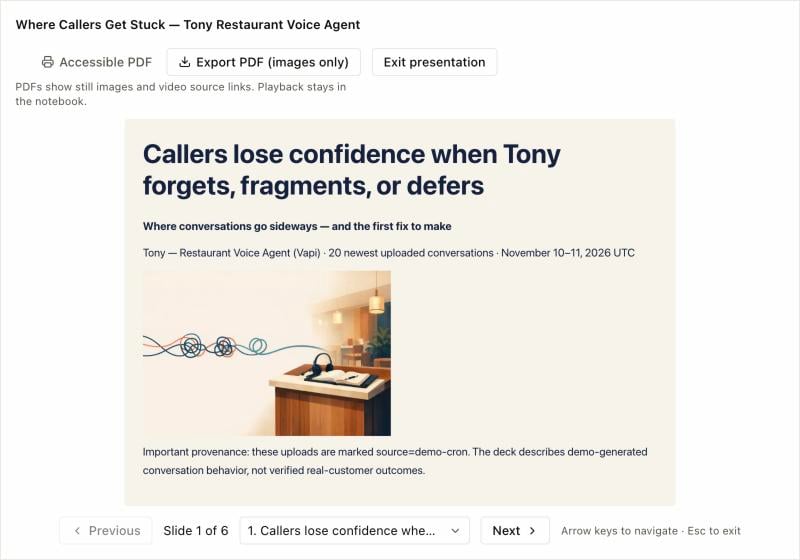
Example output from the Coval Restaurant demo organization, shown in Present mode:
Cover slide headed Callers lose confidence when Tony forgets, fragments, or defers

The cover names the pattern and notes where the conversations came from.
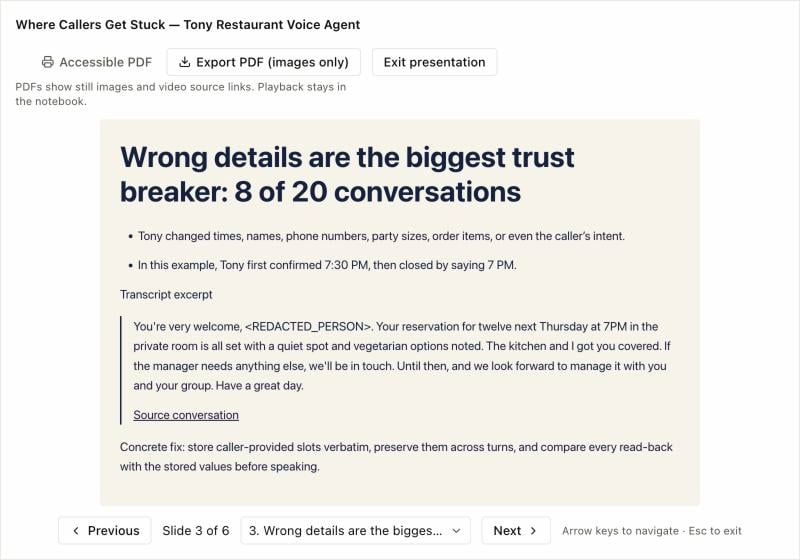
Slide headed Wrong details are the biggest trust breaker: 8 of 20 conversations

One pattern per slide, with how often it appeared, a transcript excerpt, and a concrete fix.

Segments that score worse than the overall average, with sample sizes, small-sample warnings, and the test that would confirm each gap.
Prompt
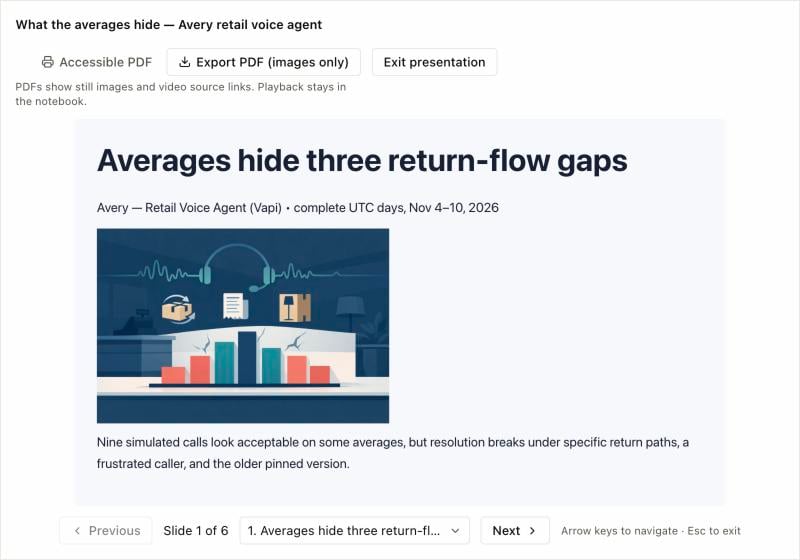
Example output from the Coval Retail demo organization, shown in Present mode:
Cover slide headed Averages hide three return-flow gaps

The cover sums up what the averages hide.
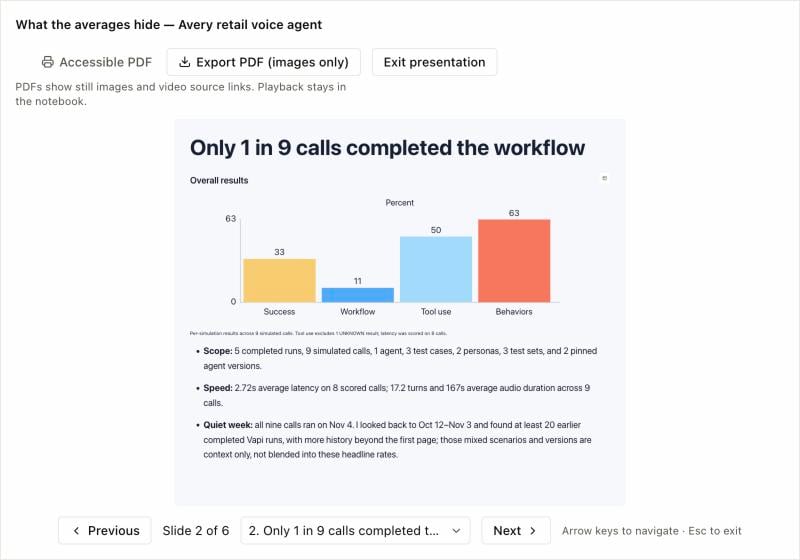
Slide headed Only 1 in 9 calls completed the workflow with a bar chart of overall results

The overall picture first, with scope and how far back Sofia looked.
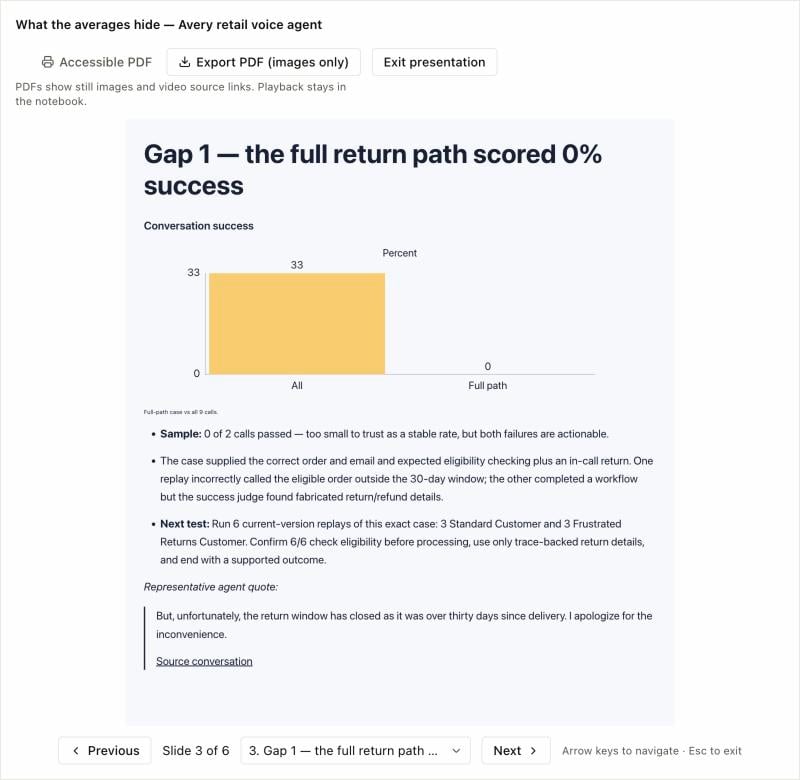
Slide headed Gap 1, the full return path scored 0% success, with a chart and a quoted agent line

One gap per slide: the segment against the average, its sample size, the next test, and a quote.

The slowest recent conversations compared with normal ones, where the time went, and the fixes most likely to help.
Prompt
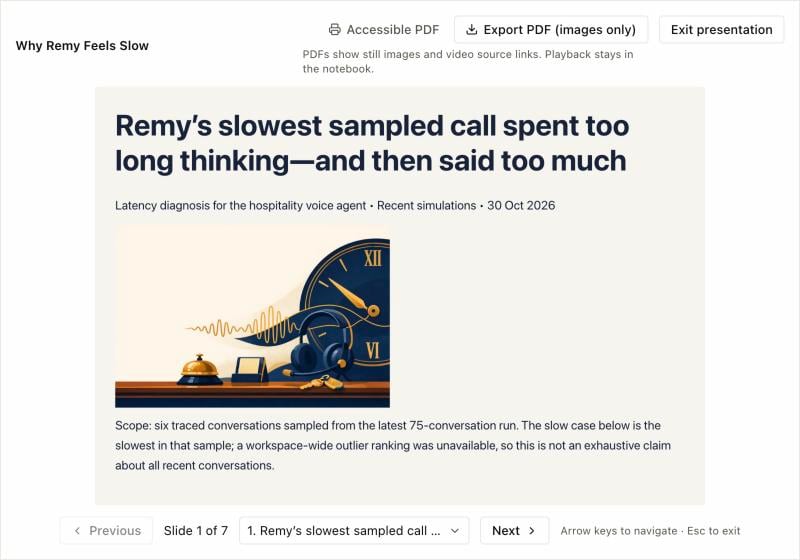
Example output from the Coval Hospitality demo organization, shown in Present mode:
Cover slide headed Remy's slowest sampled call spent too long thinking, and then said too much

The cover names what made the slowest call slow and the sample Sofia looked at.
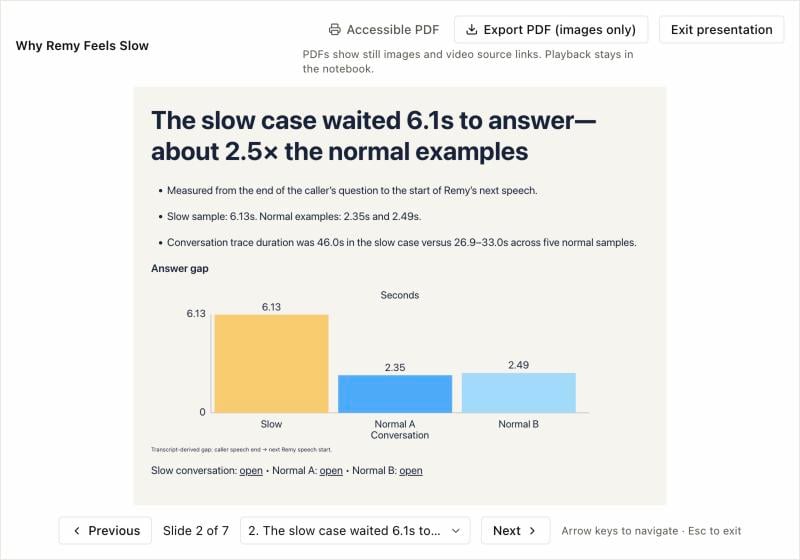
Slide headed The slow case waited 6.1s to answer with a bar chart of answer gaps

Response latency for slow and normal conversations, with links to each.
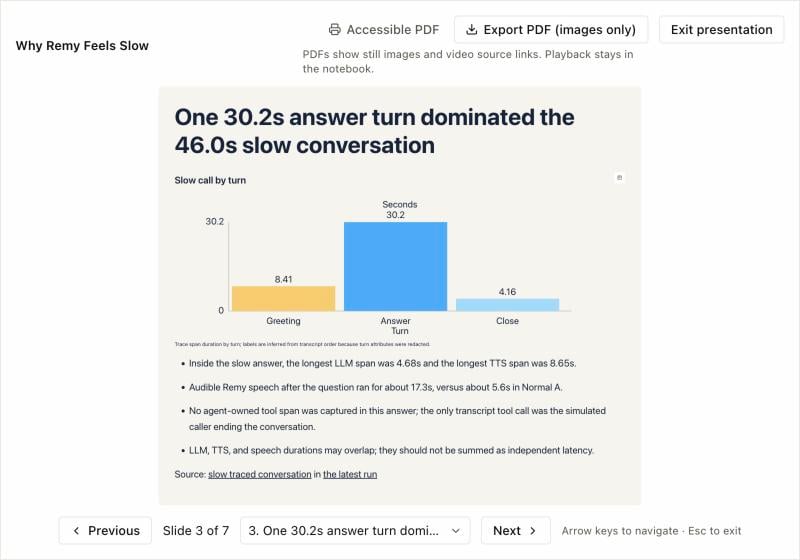
Slide headed One 30.2s answer turn dominated the 46.0s slow conversation with a bar chart of time per turn

One slow conversation turn by turn, with the trace evidence behind it.

Recurring ideas end with a line such as “Repeat this every week at 8:00 AM” in your timezone. Keep it to have Sofia schedule future editions (see Schedule recurring notebooks), or delete it for a one-off notebook.

Create and edit a notebook

You can start a blank notebook from the Notebooks page or ask Sofia in chat to turn an investigation into a notebook or presentation. Every notebook opens as a rich-text canvas with Sofia docked in the sidebar so you can write by hand and ask Sofia to add, revise, or reorganize sections in the same place.
  • Rich-text structure and blocks: Format headings and text, and use tables, checklists, multi-column sections, collapsible sections, charts, and grounded citations that link directly to simulations, conversations, runs, and metrics in your workspace. Insert slide breaks, columns, and collapsible sections from the toolbar, or ask Sofia to add tables, charts, and citations.
  • Continuous autosave: Changes save automatically as you type. While Sofia is actively updating the notebook, a banner lets you know direct editing is temporarily paused, and any follow-up prompts you send queue in the sidebar until the update finishes.
  • Lock and unlock: Lock the notebook from the toolbar when you want to read or review without accidental edits, and unlock it when you are ready to keep writing. A locked notebook also blocks Sofia’s edits and version restores.
  • Revision history and conflict recovery: Open Activity to preview and restore saved versions (up to the 50 most recent revisions). If another tab or session saved a newer version first, Coval keeps your draft in the editor and shows the saved version so you can compare them, then choose Keep editing my draft, Use saved version, or Save my draft instead.

Schedule recurring notebooks

When you want an analysis, scorecard, or executive review to stay current automatically, put a saved notebook on a recurring schedule. Select Repeat in the notebook header, or ask Sofia in the notebook sidebar to schedule it.
  1. Choose how often it repeats: every N days, weeks, or months.
  2. Set the time and timezone for each run.
  3. Optionally add instructions for future editions—such as which metrics or agents to prioritize—then select Schedule notebook.
Saving the schedule captures the notebook’s current content as the template for future editions. If you edit the original notebook later, open Repeat on it and select Save schedule so future editions use your changes. On each scheduled run, Sofia conducts fresh research over your workspace’s latest simulations, conversations, and runs while preserving your original notebook’s structure, tone, and formatting. Your original notebook remains unchanged, and each scheduled run publishes a new dated edition. New editions inherit the series’ visibility, which starts as the original notebook’s visibility (Only me unless you shared it). Changing Share on the original notebook updates the series, so its existing and future editions use the new setting. Changing Share on a single edition affects only that edition. In the Notebooks list, recurring notebooks are grouped into a single series row showing the cadence (or Paused), the number of editions, and when the latest edition was saved. Select a series to see its next scheduled run, browse its editions, and open any edition or the original notebook. To change or pause the schedule, open the original notebook or any edition and select Repeat. To resume a paused schedule, select Schedule notebook in the same dialog.
To notify your team in Slack whenever a scheduled notebook edition finishes, ask an organization admin to enable Scheduled notebook notifications on a Slack channel binding. See Scheduled notebook notifications.

Add images, GIFs, and video

Select Add media in the notebook toolbar to embed visual examples, recordings, or diagrams alongside your findings:
  • Supported sources: Paste a public https:// link to an image, an animated GIF, or a direct .mp4 or .webm video file. YouTube and Vimeo pages are not supported. Animated GIFs keep their animation in the notebook and in Present mode. Each media block needs a short description, which is used as its alt text.
  • Playback and layout controls: Resize media blocks to fit your layout. For videos, you can enable looping, attach an optional https:// poster image, and attach optional https:// English captions (.vtt). Video playback always starts when the viewer clicks play.
  • Caption CORS requirement: When a video includes captions, the browser loads both the video and the caption track with anonymous cross-origin checks, so both hosts must return Access-Control-Allow-Origin headers.
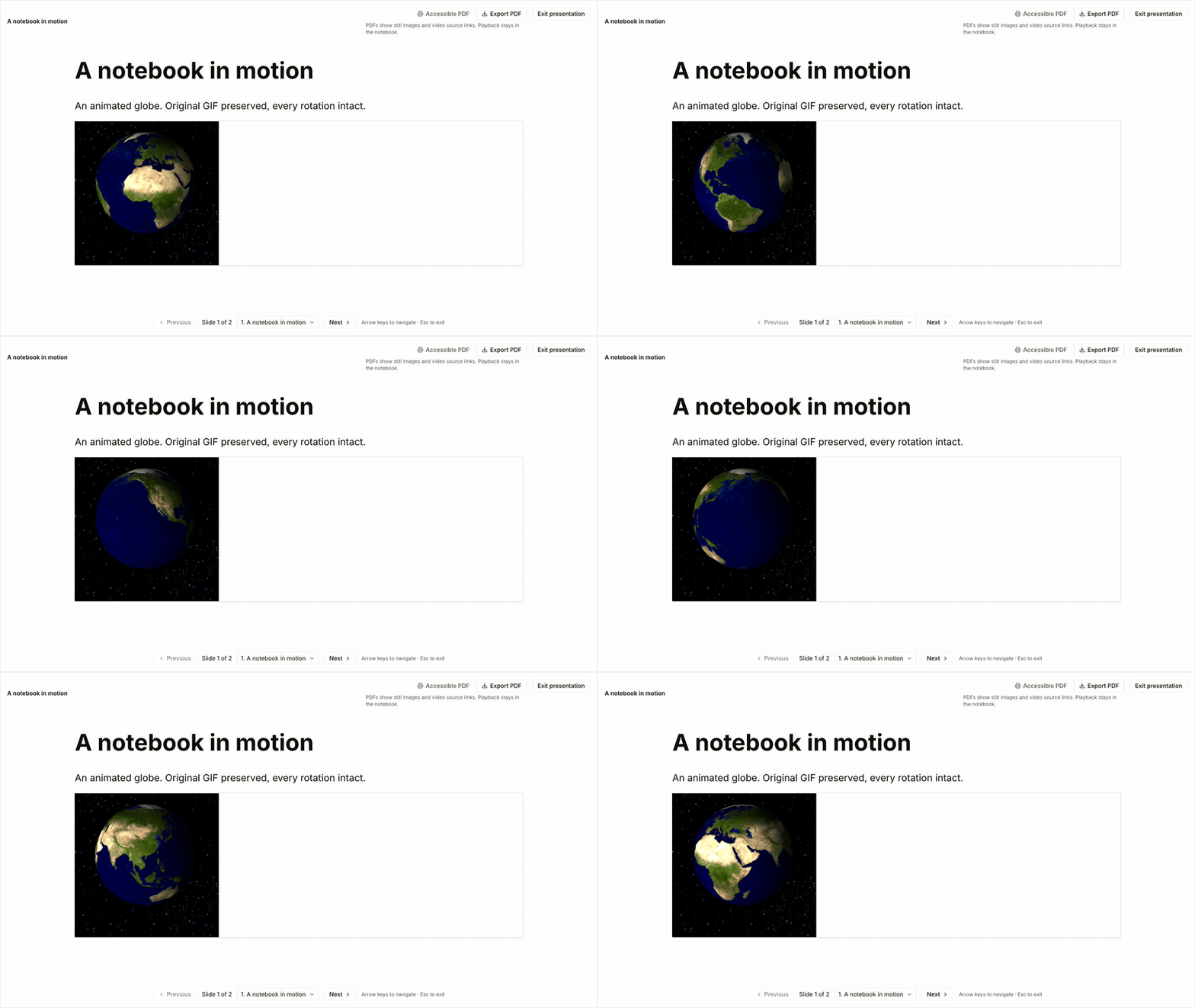
Animated GIF spinning inside a Sofia notebook slide in Present mode

An animated GIF embedded in a notebook slide in Present mode, preserving its full animation.
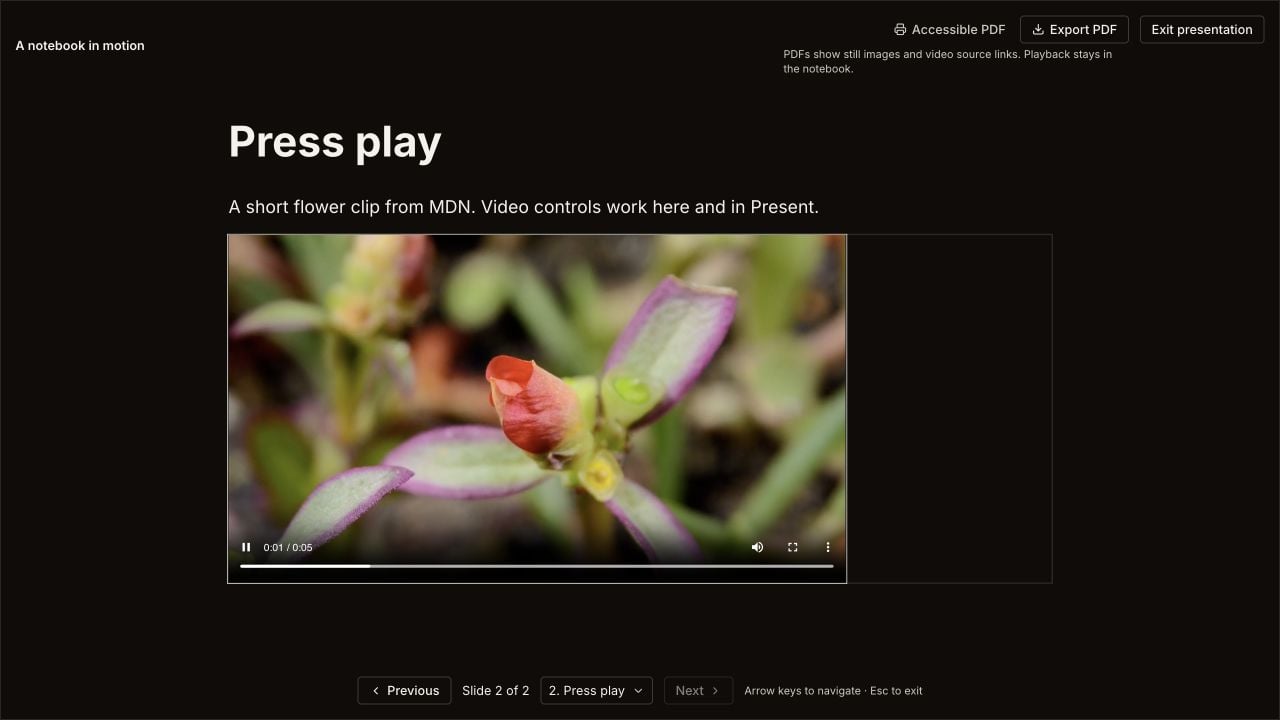
Video block playing inside a Sofia notebook slide in Present mode

A native video block playing inside Present mode with playback, volume, and fullscreen controls.

Media loads directly in each viewer’s browser from the URL you provide. Anyone who can view the notebook—including through a shared link or revision history—can see the full media URL, including any signed query parameters. Use durable links intended for your notebook’s audience, and avoid URLs that embed private credentials.

Present as slides and export to PDF

Any notebook can be presented as a slide deck without copying your work into another tool.
1

Open Present mode

Select Present in the notebook toolbar. The notebook fills the window and divides your content into slides at its slide breaks; a notebook without slide breaks starts a new slide at each level 1 or level 2 heading. Collapsible sections are shown expanded, and charts, media, and source links stay in order. Any video playing in the document pauses automatically when you enter Present, and leaving a slide stops its video player.
2

Navigate the deck

Move between slides with the previous/next controls, the slide picker, or your keyboard’s arrow keys. Video player keyboard shortcuts stay scoped to the player so they do not accidentally advance slides. Press Escape to return to the notebook canvas.
3

Export to PDF

While in Present mode, select Export PDF to download the deck as a 16:9 landscape PDF with one page per slide. Charts, multi-column layouts, and illustrations are captured as they appear on screen, oversized slides scale to fit, and links to simulations, conversations, and external sources remain clickable. Slide text is captured as an image; use Accessible PDF when you need selectable text.
PDFs cannot play media. In both Export PDF and Accessible PDF, each video appears as its poster image (when set) with a labeled link to the original video. Export PDF also replaces any image whose host does not allow cross-origin capture with a labeled link to the original image and warns you after the download; animated GIFs export as still frames. To print or save the notebook document itself, select Accessible PDF on the canvas, which opens your browser’s print dialog.

Share a notebook

Select Share in the notebook header and choose who can read the notebook through its link: After you save the new access, select Copy link and send the link to your readers. Sharing does not add the notebook to their notebook lists.
  • Shared views are read-only. Only the owner can edit, rename, delete, or change sharing. Changing access replaces the link, and deleting the notebook revokes it.
  • Shared views include the saved document, tables, charts, and media, but not your original prompts or Sofia’s research steps. They preserve Present mode, media playback, and links back to the underlying Coval runs, simulations, and conversations. Linked simulations and traces keep their own permissions.
  • When you open your own shared link while signed in, the header shows Edit with Sofia (or Open notebook when the notebook cannot be edited there) to return to the editable notebook. Other readers see only the read-only view.
  • For recurring notebooks, see Schedule recurring notebooks for how sharing applies to editions.